This guide describes how to set up and manage Menu Planning (formerly: menu profiles), a feature that allows you to configure different menus, prices, and product availability based on specific conditions.
1. What is Menu Planning?
With menu planning you can dynamically adjust the content and prices of your digital menu. This is useful for example for:
- Promotions during quiet times: For example, all pizzas at 50% off for takeaway on Mondays and Tuesdays between 11:00 and 13:00.
- Special periods: Offers that are only valid during, for instance, the Christmas holidays.
- Price differentiation: Increasing prices during busy evening hours (e.g., from €10 to €12).
- Channel-specific menus: Different offers for the webshop, kiosk, or cash register.
2. Activating Menu Planning
Before you can get started, the feature must be enabled in the management environment.
Request this via this form: Submit Request
3. Creating a New Menu Profile
Once the feature is active, you will find it under the menu option "Products" > "Menu Planning". When creating a profile, you can set the following criteria:
- Order type: Specify whether the profile applies to takeaway, delivery, or on-site consumption.
- Days and times: Select which weekdays and time intervals the profile should be active.
- Periods: Set specific dates, such as holidays.
- Channel: Choose on which platform the profile is active (currently fully supported for the webshop; updates for kiosk and cash register will follow).
Multiple plans can be active simultaneously.
For example: you set that pancakes appear from 11:30 to 13:00 and that drinks are offered at a special price during the same period. On the "Menu Planning" page, you can immediately see per product which plan is active when.
Visibility
The setting:
- Forced visible: the product appears only when an active plan specifies this.
- Forced invisible: the product never appears, not even through an active menu plan.
If you completely disable the availability of a product (out of stock), no plan will have any effect on it anymore.
4. Adjustments within the Profile
Within a specific menu profile, you can change two important things:
- Prices: You can increase or decrease prices (for example, a percentage discount). The system automatically calculates the new price based on the base price.
- Availability: You can set products that are normally available to 'unavailable' for this profile, or force products to 'available' while they are disabled in the base menu.
5. Priority and Combinations
It is important to know that only one menu profile can be active at a time.
- Priority: When multiple profiles apply at the same time, the profile with the highest priority wins.
- No stacking: Profiles are not combined. For example, a Christmas promotion of 50% off will not be added on top of a Monday promotion of 50%.
6. User Experience in the Webshop
- Automatic price adjustment: As soon as a customer selects a pickup time that falls within a profile, prices in the webshop are immediately adjusted.
- Changes during ordering: If a customer changes the order time to a moment outside the profile, a notification appears that prices have changed.
- Removal from shopping cart: If a product becomes unavailable due to a profile change (for example, due to a time change), it is automatically removed from the customer's shopping cart.
7. Reporting and Monitoring
To measure the success of your menu planning and monitor its operation, there are two additional tools:
- Reporting function: Via the 'Report' button, you can see how many orders were placed through a specific menu profile and how much discount was granted in total.
- Tester: With the tester, you can check per channel and order type which profile would be activated at which time. This way, you see exactly when the system falls back to the base price.
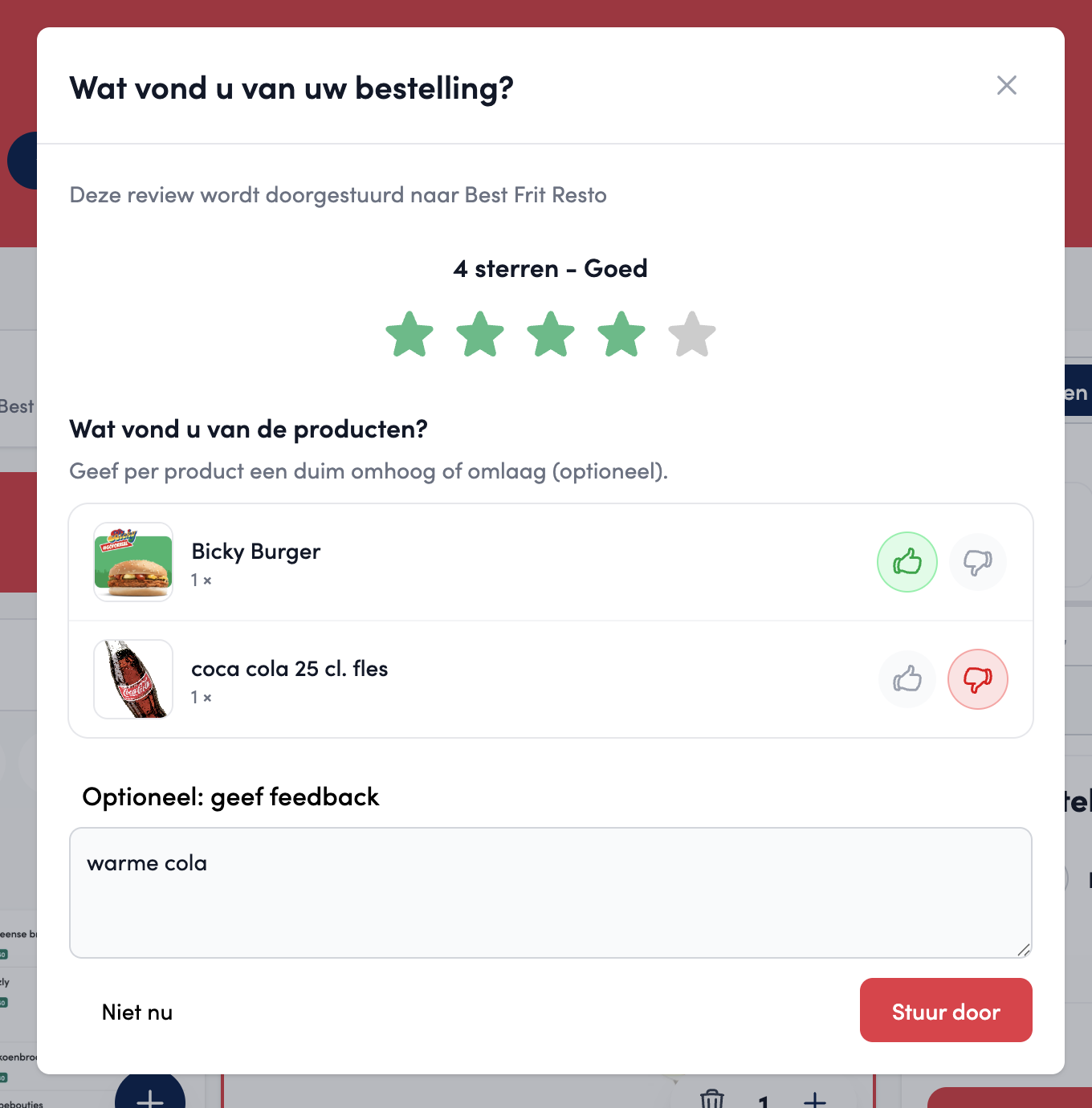
Note: Besides menu planning, there is also a new review feature available where customers can give a thumbs up or down per product after their order (at least 1 hour old) to improve recommendations.
Comments
0 comments
Article is closed for comments.